
Email on Blackberry: Difference between revisions

Content deleted Content added
Created page with "Instructions on how to set up your email account on a Blackberry: * Firstly click on Setup File:Screen_20121030_144759.jpg * Email Account [[File:Screen_20121030_14495..." |
→top: clean up |
||
| (19 intermediate revisions by 3 users not shown) | |||
| Line 1: | Line 1: | ||
<indicator name="Faults">[[File:Menu-email.svg|link=:Category:Email Clients|30px|Back up to the Email Clients Category]]</indicator> |
|||
Instructions on how to set up your email account on a Blackberry: |
Instructions on how to set up your email account on a Blackberry: |
||
# Firstly click on Setup [[File:blackberry 1.jpg|none|300px|thumb]] |
|||
# Email Account [[File:blackberry 2.jpg|none|300px|thumb]] |
|||
| ⚫ | |||
[[File:Screen_20121030_144759.jpg]] |
|||
| ⚫ | |||
#Select Other [[File:blackberry 4.jpg|none|300px|thumb]] |
|||
| ⚫ | |||
| ⚫ | |||
[[File: |
#[[File:blackberry 6.jpg|none|300px|thumb]] |
||
| ⚫ | |||
#Where you will see your email... [[File:blackberry 8.jpg|none|300px|thumb]] |
|||
| ⚫ | |||
| ⚫ | |||
| ⚫ | |||
[[File:Screen_20121030_145226.jpg]] |
|||
*Select Other |
|||
[[File:Screen_20121030_145243.jpg]] |
|||
| ⚫ | |||
[[File:Screen_20121030_145331.jpg]] |
|||
[[File:Screen_20121030_145437.jpg]] |
|||
| ⚫ | |||
[[File:Screen_20121030_145717.jpg]] |
|||
* Where you find 3 emails from us |
|||
[[File:Screen_20121030_145733.jpg]] |
|||
==SSL== |
|||
| ⚫ | |||
| ⚫ | |||
| ⚫ | |||
| ⚫ | |||
| ⚫ | |||
#Expand Advanced Options |
|||
:[[File:blackberry 9.jpg|none|300px|thumb]] |
|||
:[[File:blackberry 10.jpg|none|300px|thumb]] |
|||
| ⚫ | |||
[[Category:Email Clients|Blackberry]] |
|||
| ⚫ | |||
* Email Account |
|||
| ⚫ | |||
Latest revision as of 23:53, 17 August 2018
Instructions on how to set up your email account on a Blackberry:
- Firstly click on Setup
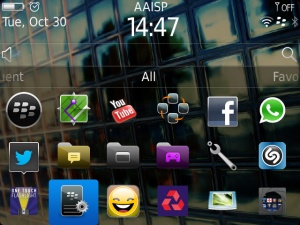
- Email Account
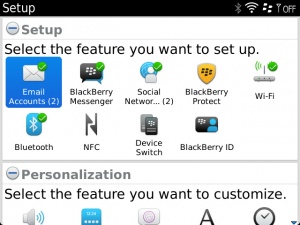
- Internet Email Account NOT Enterprise
- Add new email account or Set up another email account
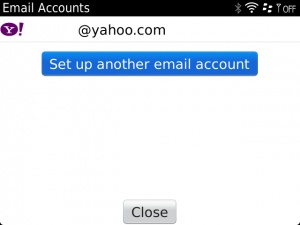
- Select Other
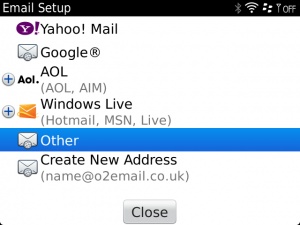
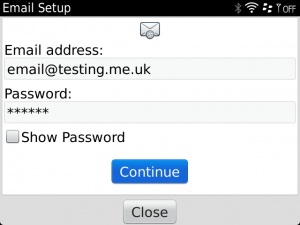
- Enter your details (contact support if you do not know your password)
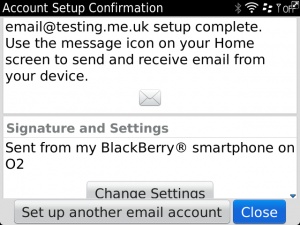
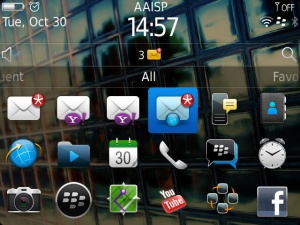
- A new icon will now appear on you home screen
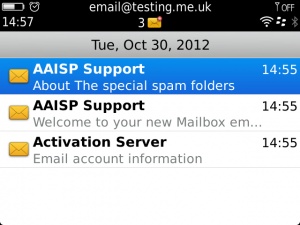
- Where you will see your email...
- Set up is now complete


SSL
SSL is turned on by default, if you need to turn it off:
- Click on Setup
- Email Account
- highlight your account, press the Blackberry button and select Edit
- Expand Advanced Options


