
SNOM Firmware Updates: Difference between revisions
→Upgrading to the latest version: Fix numberign |
→Upgrading to the latest version: Include some from above |
||
| Line 45: | Line 45: | ||
# Right click on the firmware for the phone and click 'Copy Shortcut'/'Copy Link', as shown in the image below: |
# Right click on the firmware for the phone and click 'Copy Shortcut'/'Copy Link', as shown in the image below: |
||
#:[[File:Snom-firmware.png|none|frame|List of Firmware on the Snom Wiki page]] |
#:[[File:Snom-firmware.png|none|frame|List of Firmware on the Snom Wiki page]] |
||
# Log in to your Snom phone's web interface (see: [[SNOM Find IP Address]] if you're unsure how to access the web interface). The phone should ask you for a user name and password. If the phone was originally configured by AAISP then we may have a note of the password. |
|||
# Log in to your Snom phone's web interface and navigate to Firmware Update. |
|||
# Click on the 'Software Update' link in the left menu, as in the image below: |
|||
| ⚫ | |||
#:[[File:Snom-software-update.png|none|frame|Update menu on the Snom]] |
|||
# Paste the link in to the Firmware field and click 'Load'. |
# Paste the link in to the Firmware field and click 'Load'. |
||
| ⚫ | |||
# The file will be loaded and the phone will reboot. |
# The file will be loaded and the phone will reboot. |
||
Revision as of 16:36, 7 December 2021

The firmware on SNOM phones can easily be updated. This page covers how to upgrade a Snom phone and also has information about Security Updates that have been released by Snom.
Security Update:- February 2015
Update 15th Jan 2015, 9pm: Snom have (yet again) updated their Security Update page. It is now stating that a firmware patch upgrade is not needed in most cases. We have advised customers to to upgrade, but it seems it is not as clear cut was it was earlier in the day (on the 15th Jan). The information below is our notes from before Snom withdrew the firmware update. We suggest people using Snom phones to review Snom's Security Update page.
Snom have released a security update for their phones. They have information about this on their wiki: http://wiki.snom.com/8.7.5.15_OpenVPN_Security_Update All Snoms listed on that page should be upgraded, here are notes on upgrading your phone:
1. Go to Snom's Special Security Update page: http://wiki.snom.com/8.7.5.15_OpenVPN_Security_Update
2. Right click on the firmware for your phone model and click 'Copy Shortcut' or 'Copy Link', as in the image below:

3. Log in to your Snom phone's web interface (see: SNOM Find IP Address if you're unsure how to access the web interface). The phone should ask you for a user name and password. If the phone was originally configured by AAISP then we may have a note of the password.
4. Click on the 'Software Update' link in the left menu, as in the image below:

5. Paste the link in to the Firmware field and click 'Load', as in the image below:

6. The file will be loaded and the phone will reboot, it may ask to press Tick before it reboots.
How to upgrade a SNOM phone
These instructions are for how to update your phone to the latest firmware that Snom have published. (do check for security updates above, as there may well be newer firmware available.)
- You can go to https://service.snom.com/ and look in the "LATEST FIRMWARE RELEASES" section. We have some notes below, but generally following Snom's 'Firmware Wizard' will be best.
- See: SNOM Find IP Address if you're unsure how to access the web interface of your Snom.
Upgrading to the latest version
You can use these notes to upgrade to the latest version that Snom have on their wiki. (Do check for any Security updates that may be newer than the versions listed on their firmware pages).
Snoms instructions are found at their service hub.
- Go to the Snom Firmware page: https://service.snom.com/display/wiki/Firmware+Update+Center
- Click on the "Latest Release" under the Device type that you have.
- Scroll down to the Downloads section.
- Right click on the firmware for the phone and click 'Copy Shortcut'/'Copy Link', as shown in the image below:

List of Firmware on the Snom Wiki page
- Log in to your Snom phone's web interface (see: SNOM Find IP Address if you're unsure how to access the web interface). The phone should ask you for a user name and password. If the phone was originally configured by AAISP then we may have a note of the password.
- Click on the 'Software Update' link in the left menu, as in the image below:
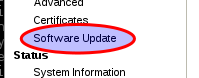
Update menu on the Snom
- Paste the link in to the Firmware field and click 'Load'.

Firmware form on the Snom web interface
- The file will be loaded and the phone will reboot.

The Snom wiki pages do give a bit more detail than these points above, so if you get stuck then please to read the Snom pages.
End of Life
These phones from Snom are end of life and probably won't have any new Firmware:
- 1xx series
- 300, 320, 360, 370
- 821, 870
(There may well be others that are not listed here)